FaceSwitch's FAQs (Frequently Asked Questions and Answers)
Table of Contents (Select a link below to scroll to each section)
How to connect the "FaceSwitch" app to "MaBeee"?
・The "FaceSwitch" app connects wirelessly to an external "MaBeee" device via Bluetooth.
・To establish the connection, tap the "Settings" (gear icon) in the top-left corner of the app.
(1) On the "Settings" screen, select a facial movement such as "Open Mouth," then go to the detailed settings and choose "MaBeee" under the "Output" section.
(2) A list of available "MaBeee" devices will appear. Tap one to connect.
Please refer to the video below for a connection walkthrough.
Which "Relay" is compatible?
The following relays are compatible with the "FaceSwitch" app.
DSD TECH:
・SH-BT01A Bluetooth Module
・Channel Bluetooth 4.0 BLE Relay Module for iPhone and Android (12V)
・SH-BT04B Bluetooth Module
TinySine: TinySine TOSR141 - 4 Channel Bluetooth Relay
Switch Science: ISP1507 Bluetooth Relay Board
How to connect the "FaceSwitch" app to "Relay"?
・The "FaceSwitch" app connects wirelessly to an external "Relay" device (please see here for compatible models) via Bluetooth.
・To establish the connection, tap the "Settings" (gear icon) in the top-left corner of the app.
(1) On the "Settings" screen, select a facial movement such as "Open Mouth," then go to the detailed settings and choose "Relay" under the "Output" section.
(2) A list of available relay devices will appear. Tap one to connect.
Please refer to the video below for a connection walkthrough.
How to electrically connect the "Relay" switch to other devices?
The "FaceSwitch" app electrically connects or disconnects the "COMM (COMMON)" and "NO (Normally Open)" terminals on the relay, functioning as a switch (ON/OFF).
By connecting a 3.5mm monaural plug to these output terminals (as shown in the image below), the relay can act as a switch signal for other devices.
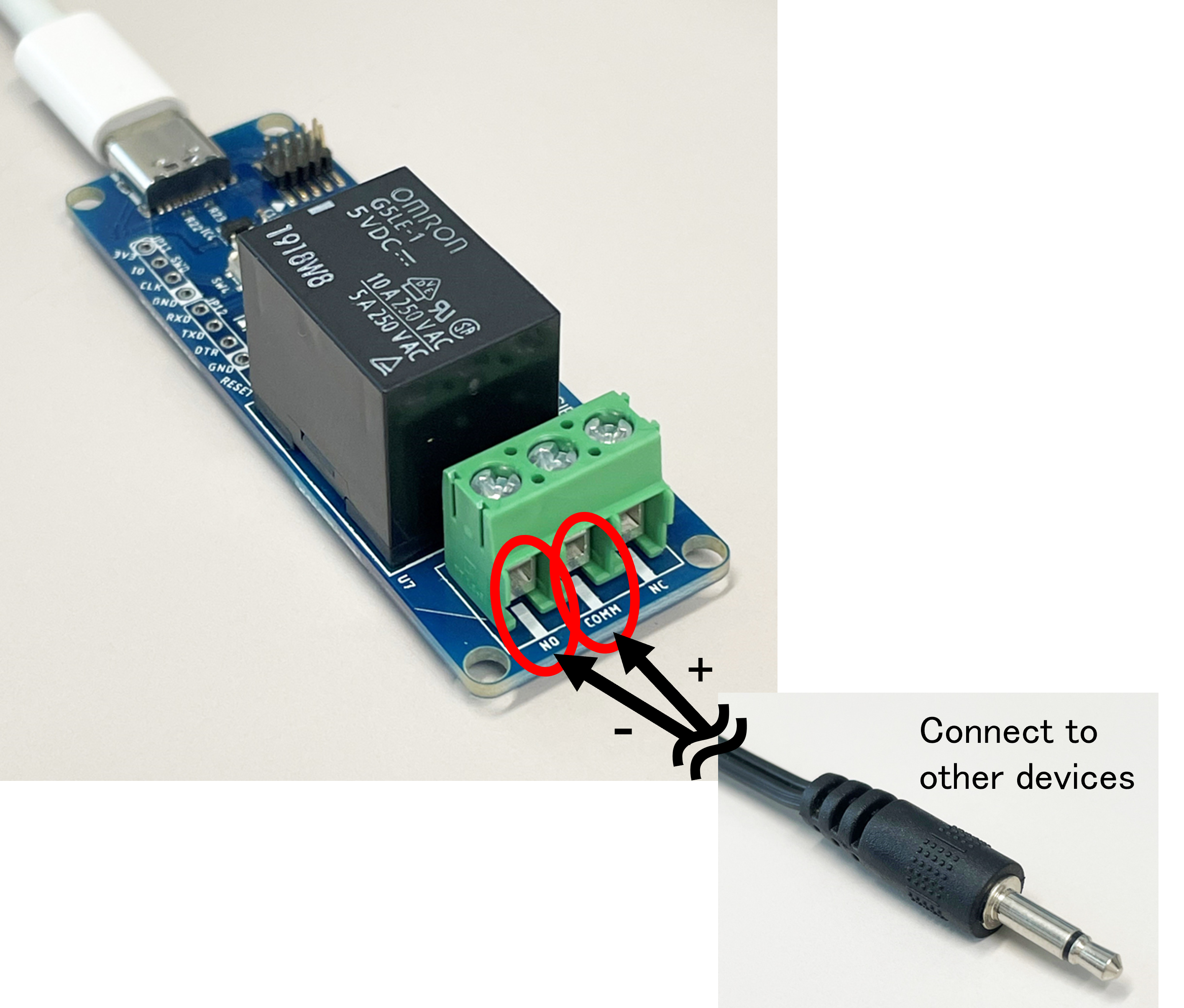
Fig. 1 Output from Bluetooth Relay (Switch signal for other devices)
The "MaBeee" or "Relay" device does not appear in the device list in "Settings".
This issue is likely due to the "FaceSwitch" app or the iPhone/iPad itself being unable to establish a Bluetooth connection with the devices. Please check the following required settings (1)–(4).
(1) Turn on Bluetooth, on your iPhone or iPad.
Open the "Settings" app and make sure the "Bluetooth" toggle is turned on.
(2) Allow the "FaceSwitch" app to use Bluetooth.
When you launch the "FaceSwitch" app for the first time, a message like Fig. 2 will appear asking for Bluetooth permission.
If you selected "Don’t Allow", the app won’t be able to connect to devices via Bluetooth, and they will not appear in the list.
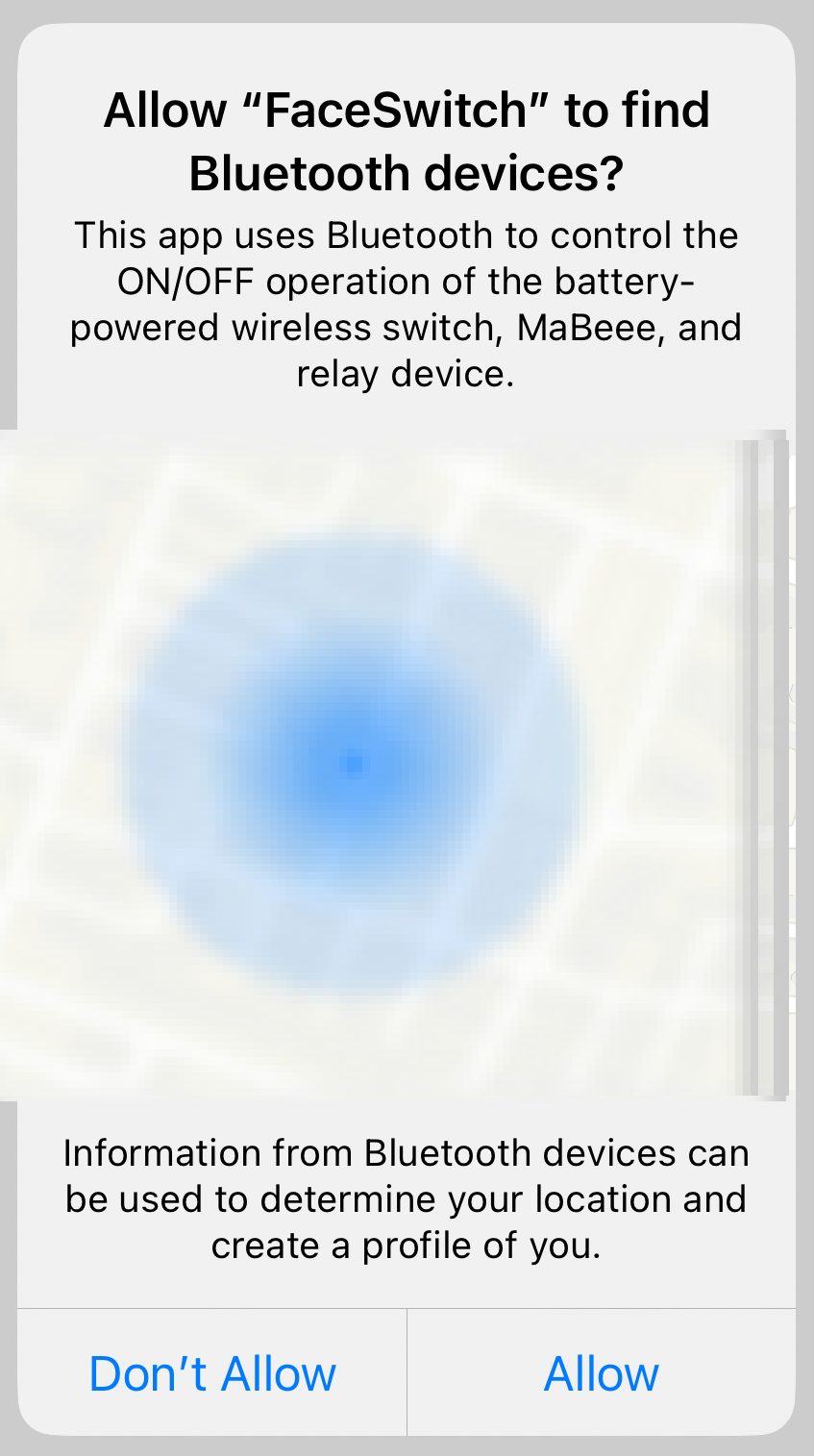
Fig. 2 Message requesting Bluetooth permission
To allow the "FaceSwitch" app to use Bluetooth, either tap "Allow" when the message appears (Fig. 2), or go to the iOS "Settings" app → "Apps" → "FaceSwitch", and enable the "Bluetooth" toggle as shown in Fig. 3.
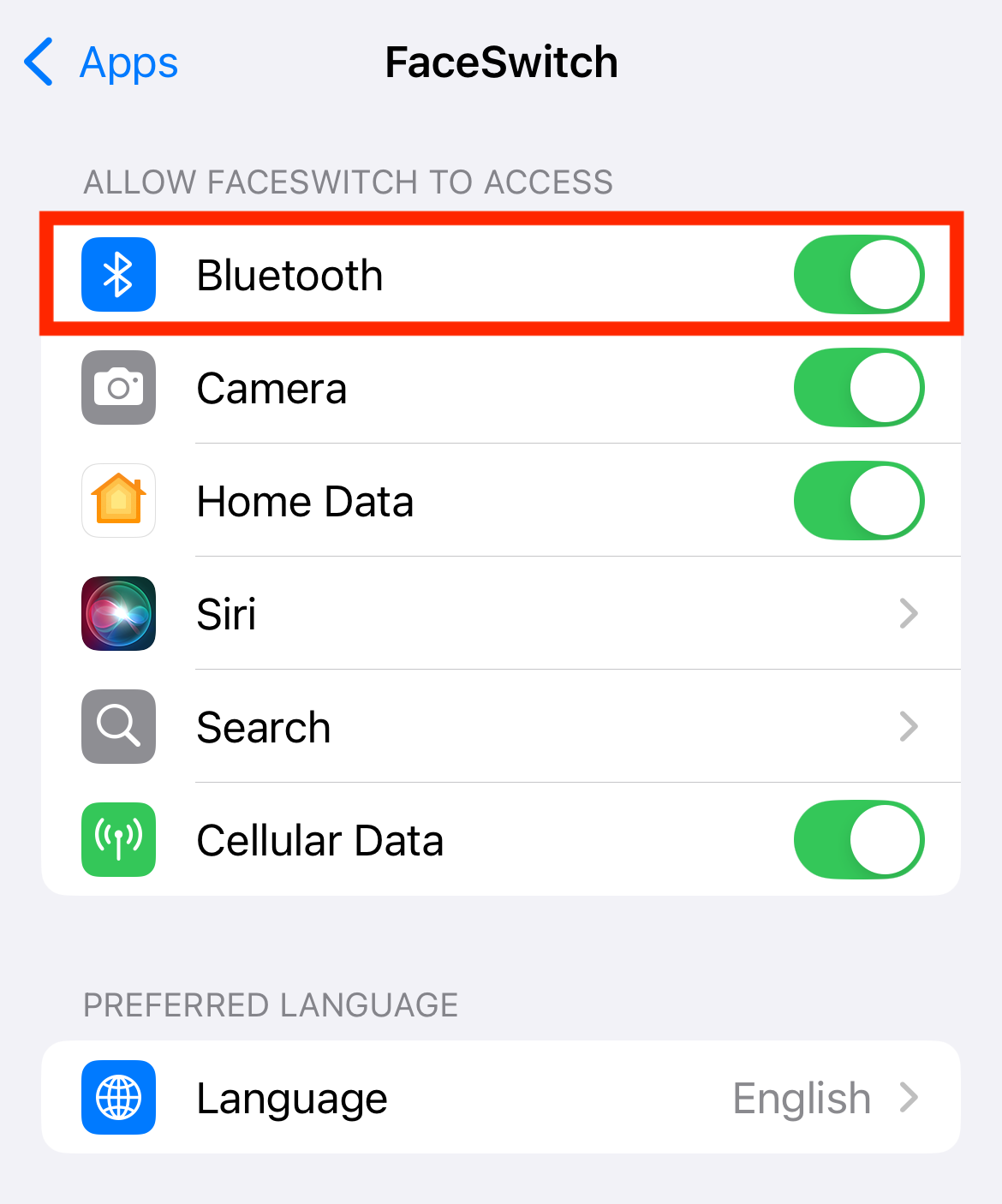
Fig. 3 Enable Bluetooth for "FaceSwitch" in the iOS "Settings" app
(3) Disconnect the device from other apps or other actions within the "FaceSwitch" app.
If the "MaBeee" or "Relay" is already connected to another app or assigned to a different facial movement in "FaceSwitch", it will not appear in the list.
Disconnect it from the other app or the detailed setting first, and then try again.
(4) Check the power supply of the "MaBeee" or "Relay" device.
The devices must be powered to be detected.
For "MaBeee", insert the batteries and connect it to a circuit that can flow electricity.
For "Relay", ensure the device is plugged into a power source.
How to control smart home devices (Matter / HomeKit compatible) from the "FaceSwitch" app? (For iPhone)
・The "FaceSwitch" app can control the power of smart home devices that have been added to the built-in "Home" app on iPhone (such as Matter/HomeKit-compatible lights, plugs, remotes, etc.).
How to add the smart home device to the "Home" app.
・First, complete the initial setup of the smart home device using the manufacturer's app.
(2.4GHz Wi-Fi is required. For setup, please refer to the device manual or instructions by each manufacturer.)
・After completing the initial setup, add the smart home device to the "Home" app.
(1) On the settings screen of the manufacturer's app, follow any "Home" or "Matter" integration/setup options.If the product supports Matter, a QR code or numeric code for step (2) will be shown.
(2) Open the "Home" app, tap the "+" button at the top right, and select "Add Accessory." Enter the included QR or numeric code if necessary.
How to connect the "FaceSwitch" app to a smart home device that are added to the "Home" app.
・To establish the connection, tap the "Settings" (gear icon) in the top-left corner of the "FaceSwitch" app.
(3) On the "Settings" screen, select a facial movement such as "Open Mouth," then go to the detailed settings and choose "'Home' App" under the "Output" section.
(4) A list of available smart home devices will appear. Tap one to connect.
Please refer to the video below for a control walkthrough.
Note: Currently, only power operations (ON/OFF) of smart home devices are supported.
How to control smart home devices (Matter / HomeKit compatible) from the "FaceSwitch" app? (For iPad)
・The "FaceSwitch" app can control the power of smart home devices that have been added to the built-in "Home" app on iPad (such as Matter/HomeKit-compatible lights, plugs, remotes, etc.).
Note: For iPad use, a connection with AppleTV or HomePod is additionally required to link with the "Home" app.
See Apple’s official guide on using smart home devices with iPad here.
・First, complete the initial setup of the smart home device using the manufacturer’s app.
(2.4GHz Wi-Fi is required. For setup procedures, please refer to the device manual or instructions provided by each manufacturer.)
・After completing the initial setup, register the device in the "Home" app via AppleTV or HomePod settings.
Unable to add smart home devices (Matter / HomeKit compatible) to the "Home" app.
Smart home devices (Matter / HomeKit compatible) communicate over Wi-Fi (2.4GHz). During setup, you must be on the same 2.4GHz Wi-Fi network as your iPhone. Since many devices do not support the 5GHz band, you may need to switch your Wi-Fi. Please check the settings below (1) to (3) required for connection.
(1) Turn on Wi-Fi on your iPhone.
Open the "Settings" app and make sure the "Wi-Fi" toggle is turned on.
(2) Connect your iPhone to a 2.4GHz Wi-Fi network.
(3) From the setup app for the smart home device, go to the device's settings screen and change its Wi-Fi to match the same 2.4GHz Wi-Fi as the iPhone.
Then, add it to the "Home" app.
Smart home devices (Matter / HomeKit compatible) in "Home" do not appear in the "FaceSwitch" app.
If smart home devices added to the "Home" app do not appear in the "FaceSwitch" app, it may be because permission to access "Home" data has not been granted to the "FaceSwitch" app. Please check the necessary setting described in (1) below.
(1) Allow the "FaceSwitch" app to access Home Data.
When you launch the "FaceSwitch" app for the first time, a message like Fig. 4 will appear asking for Home Data permission.
If you selected "Don’t Allow", the app won’t be able to connect to devices via Home Data, and they will not appear in the list.
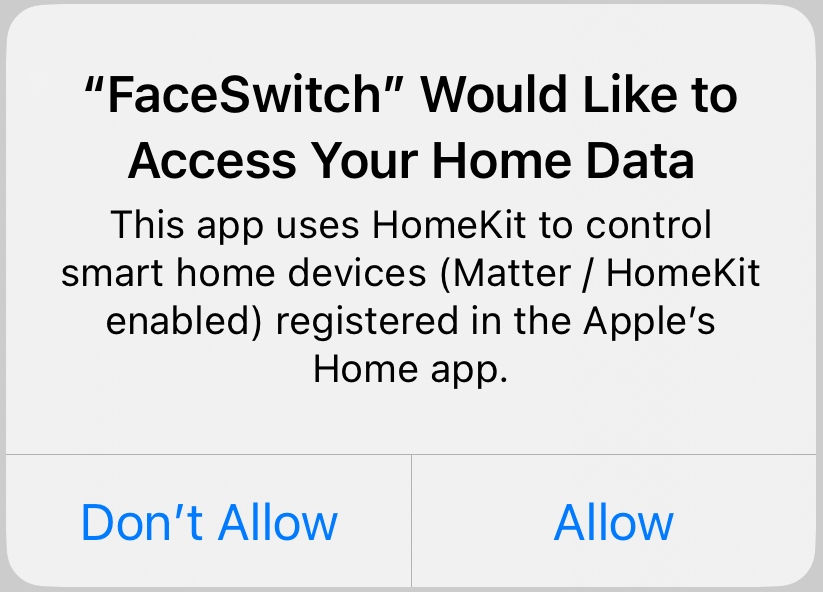
Fig. 4: Message requesting permission to access Home Data
To allow the "FaceSwitch" app to access to Home Data, either tap "Allow" when the message appears (Fig. 4), or go to the iOS/iPadOS "Settings" app → "Apps" → "FaceSwitch", and enable the "Home Data" toggle as shown in Fig. 5.
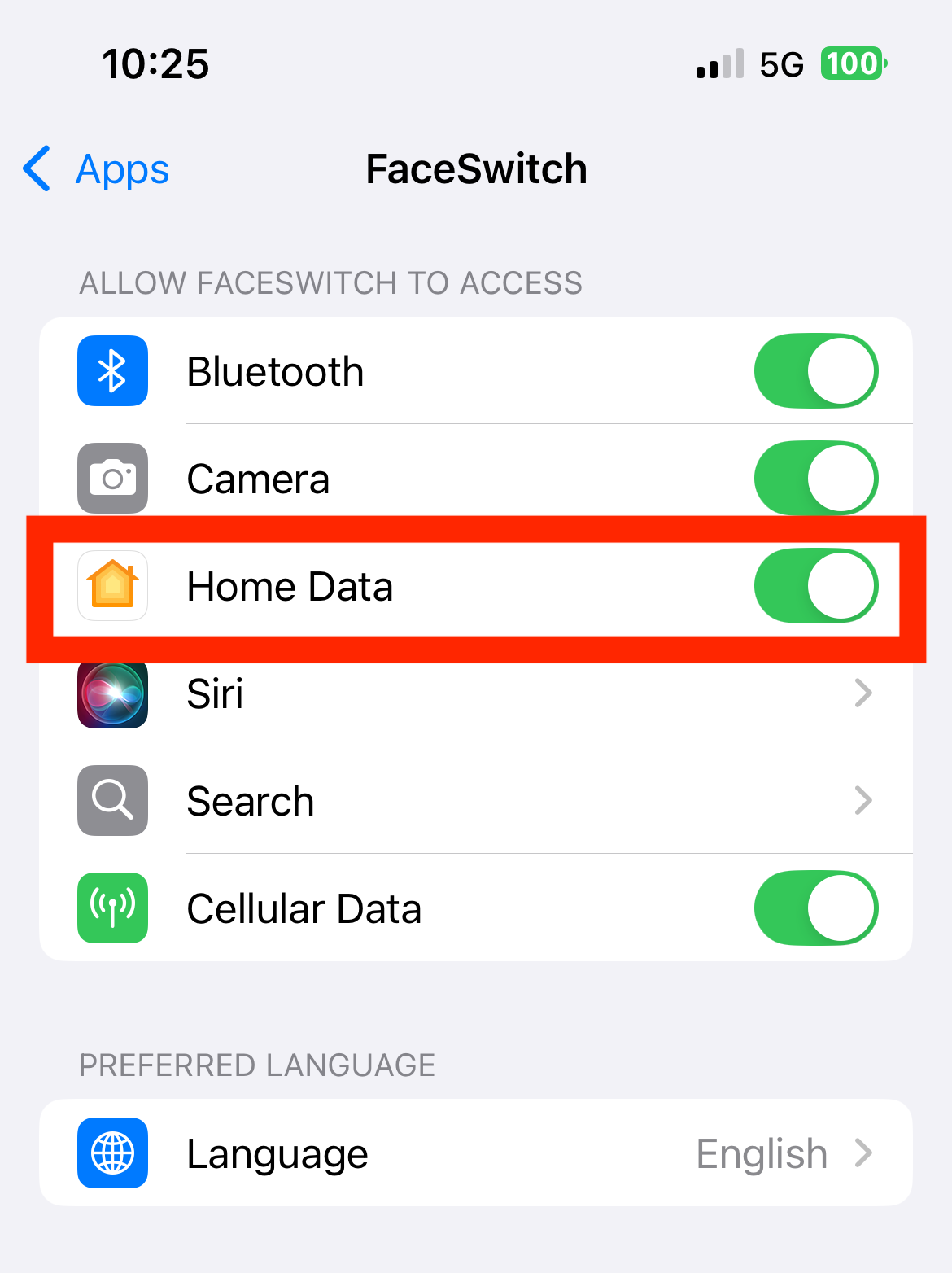
Fig. 5: Enabling the Home Data switch in the Settings app under "FaceSwitch"
How to control the "Shortcuts" app from the "FaceSwitch" app?
・The "FaceSwitch" app can control apps like "Music" by using Apple’s "Shortcuts" app.
・First, create a shortcut in the "Shortcuts" app that will work with the "FaceSwitch" app (see "How to create a shortcut" below).
・At the end of the shortcut, be sure to add an action to reopen the "FaceSwitch" app.
・After creating the shortcut, tap the "Settings" (gear icon) in the top-left corner of the "FaceSwitch" app.
(1) On the "Settings" screen, select a facial movement such as "Open Mouth," then go to the detailed settings and choose "'Shortcuts' App" under the "Output" section.
(2) A text field will appear, so enter the name of the shortcut you created.
Please refer to the video below for a control walkthrough.
How to create a shortcut?
(1) First, open the "Shortcuts" app and tap the "+" icon in the upper right.
(2) Then, on the action selection screen, add the actions you want to perform (you can choose from the bottom of the screen).
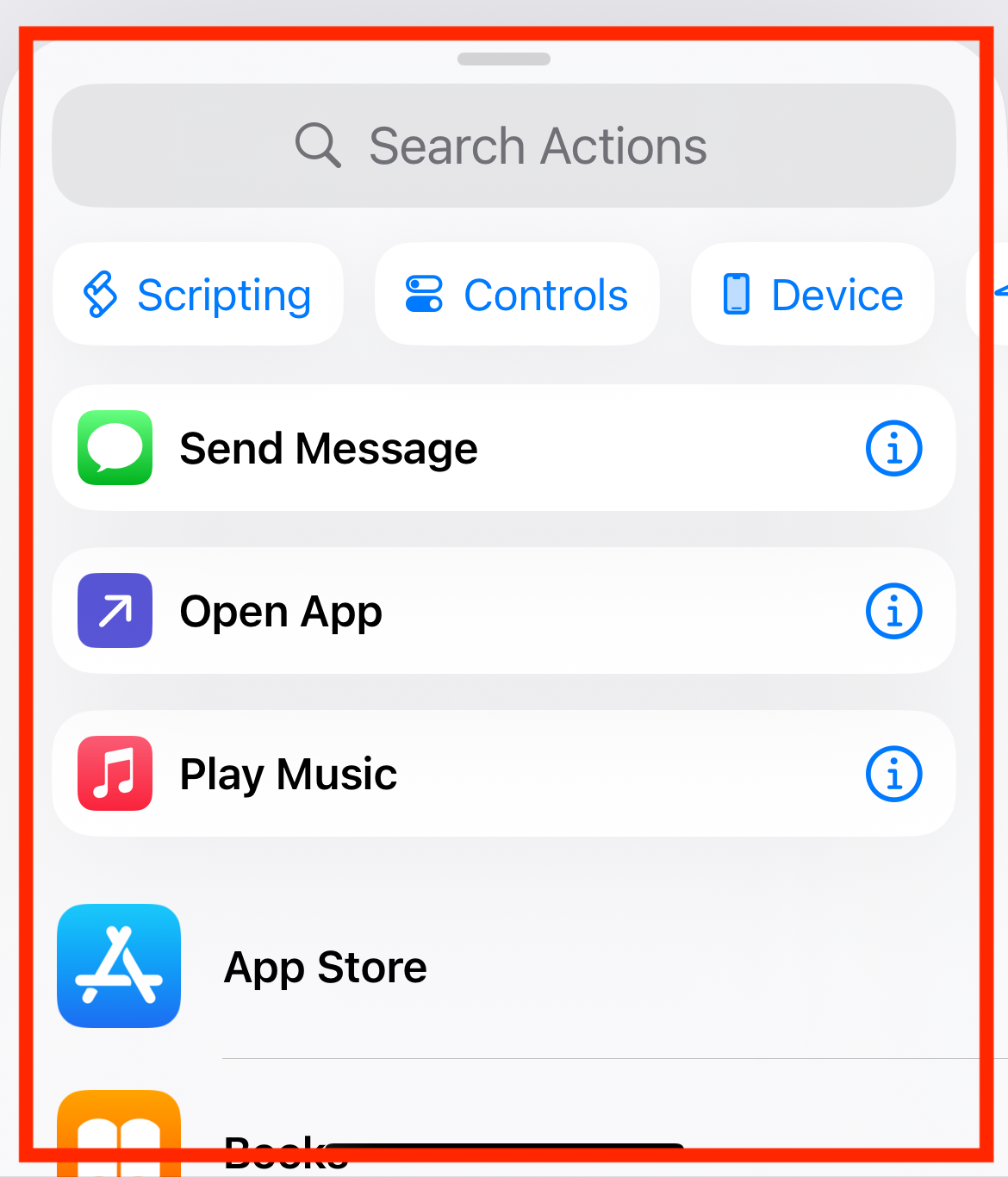
Fig. 6: Action Selection Screen
(3) At the end of the shortcut actions, add the "Open App" action. Tap "App" and set it to "FaceSwitch" (this is needed to return to the FaceSwitch app after the shortcut finishes).
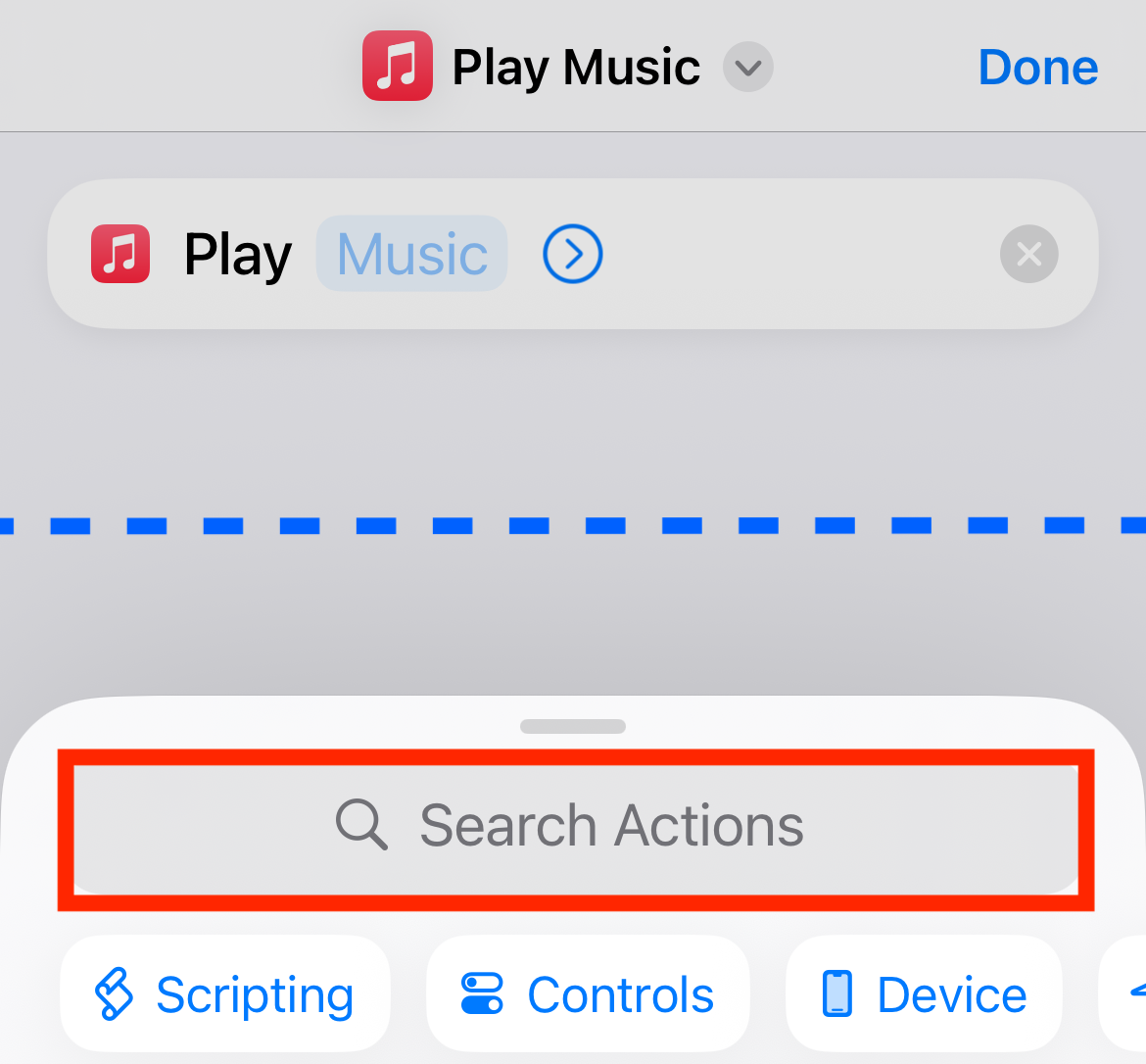
Fig. 7: Open Action Selection Screen
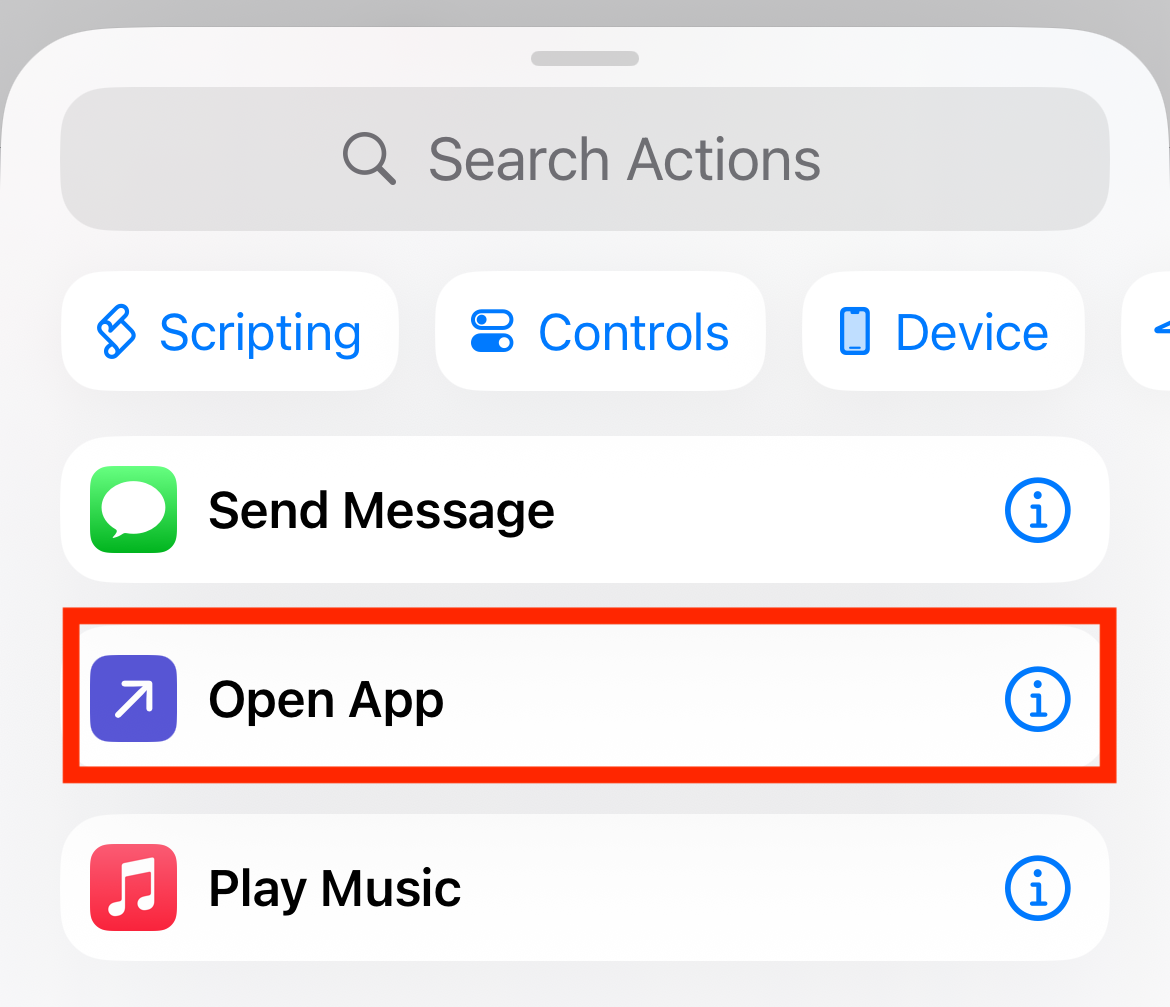
Fig. 8: Add "Open App"
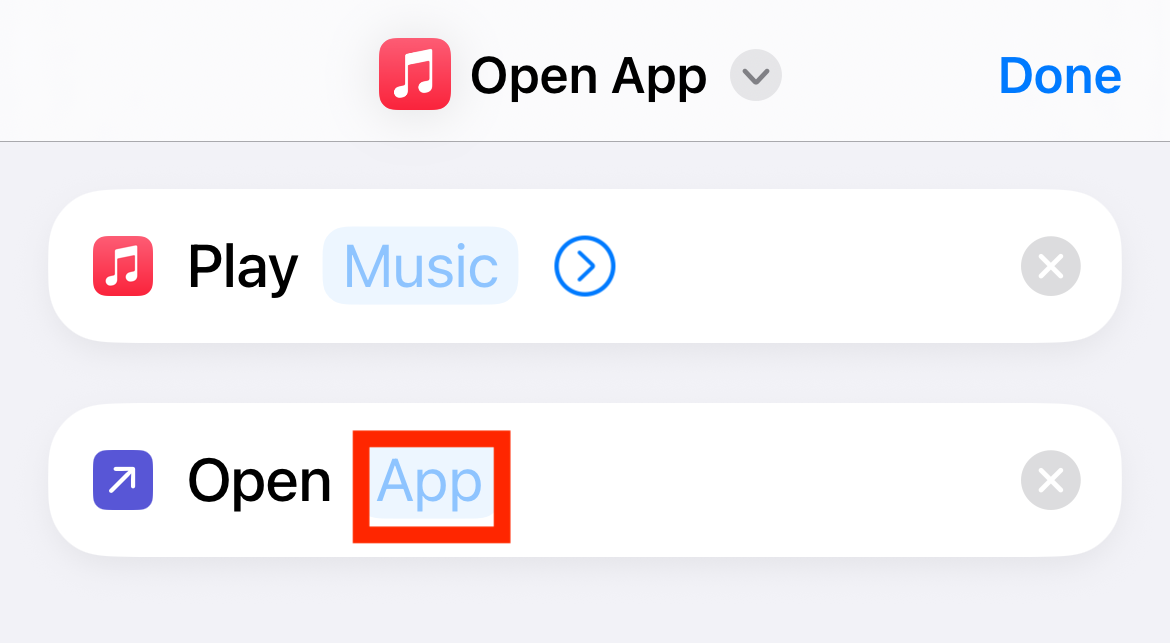
Fig. 9: Tap "App"
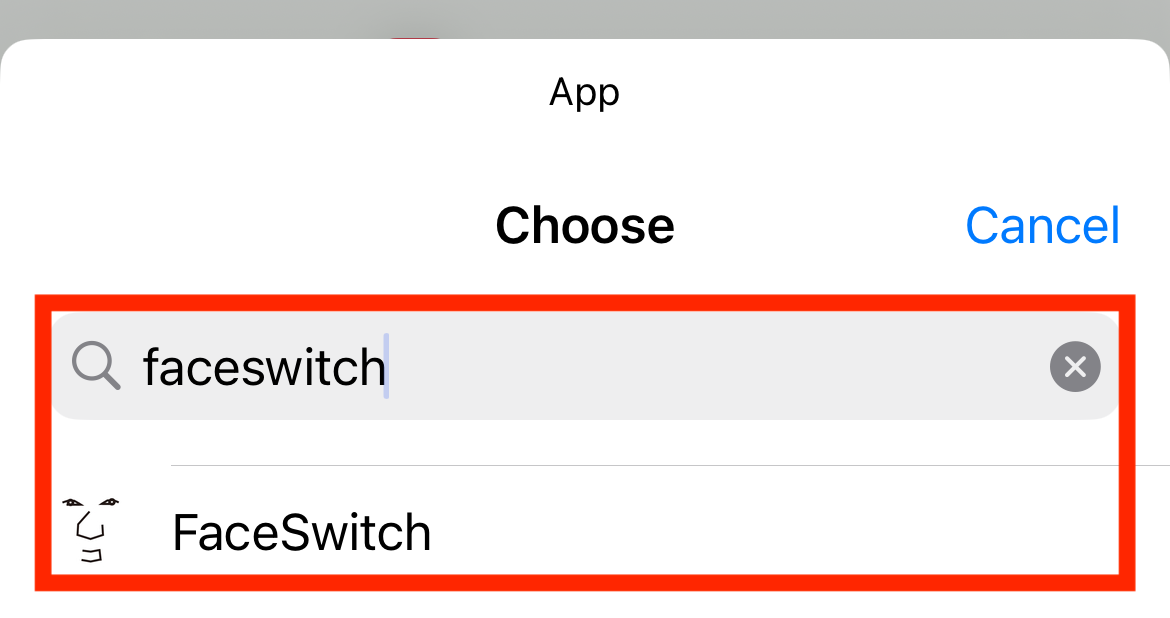
Fig. 10: Search "FaceSwitch"
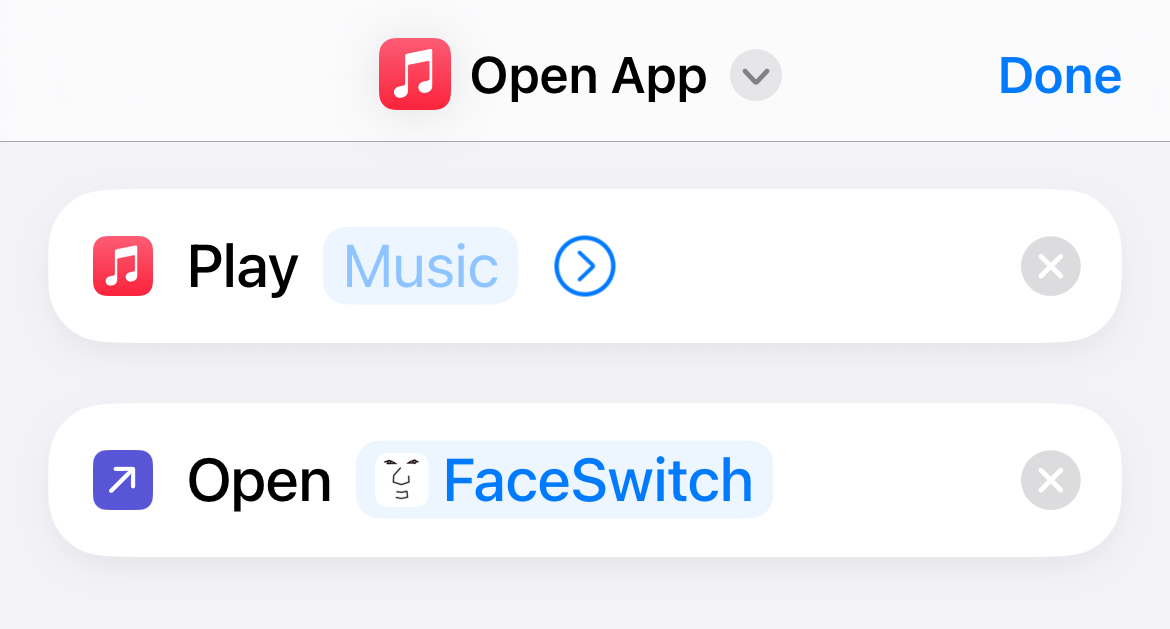
Fig. 11: Complete
Note: To rename the shortcut, tap the current name shown at the top center of the screen. A short name is recommended.
When executing the shortcut, it says "The File doesn't exist."
The shortcut name entered in the "FaceSwitch" app must exactly match the name created in the "Shortcuts" app, including spaces, full-width/half-width characters.
Noto: To change the shortcut name, tap the current name at the top center of the screen. A short, simple name is recommended to avoid mistakes.
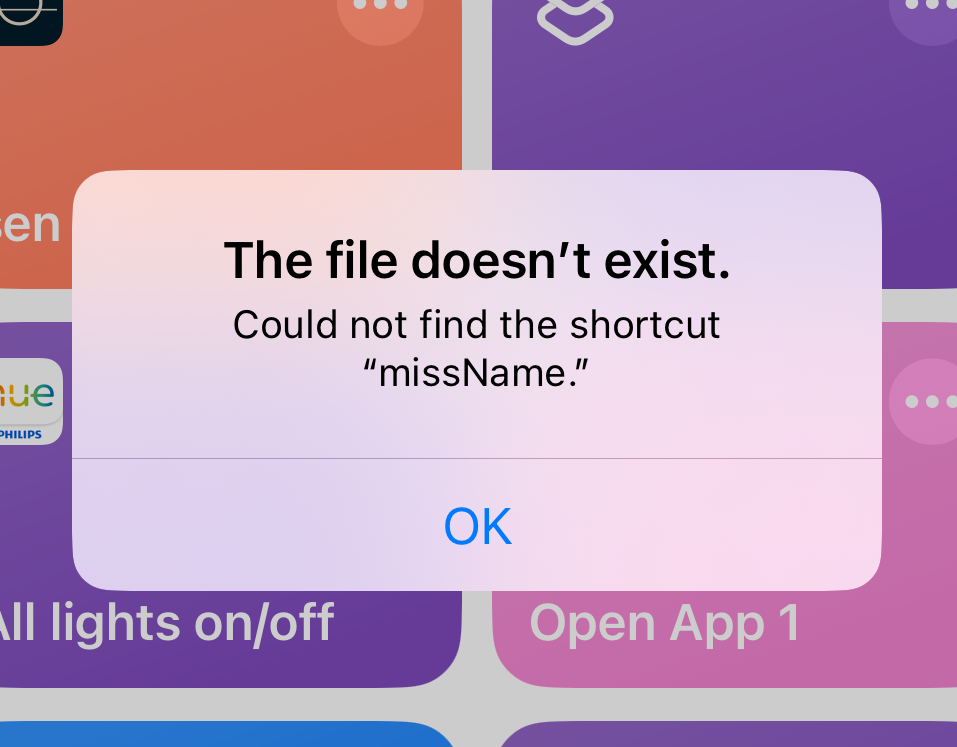
Fig. 12: "The file doesn't exist." alert
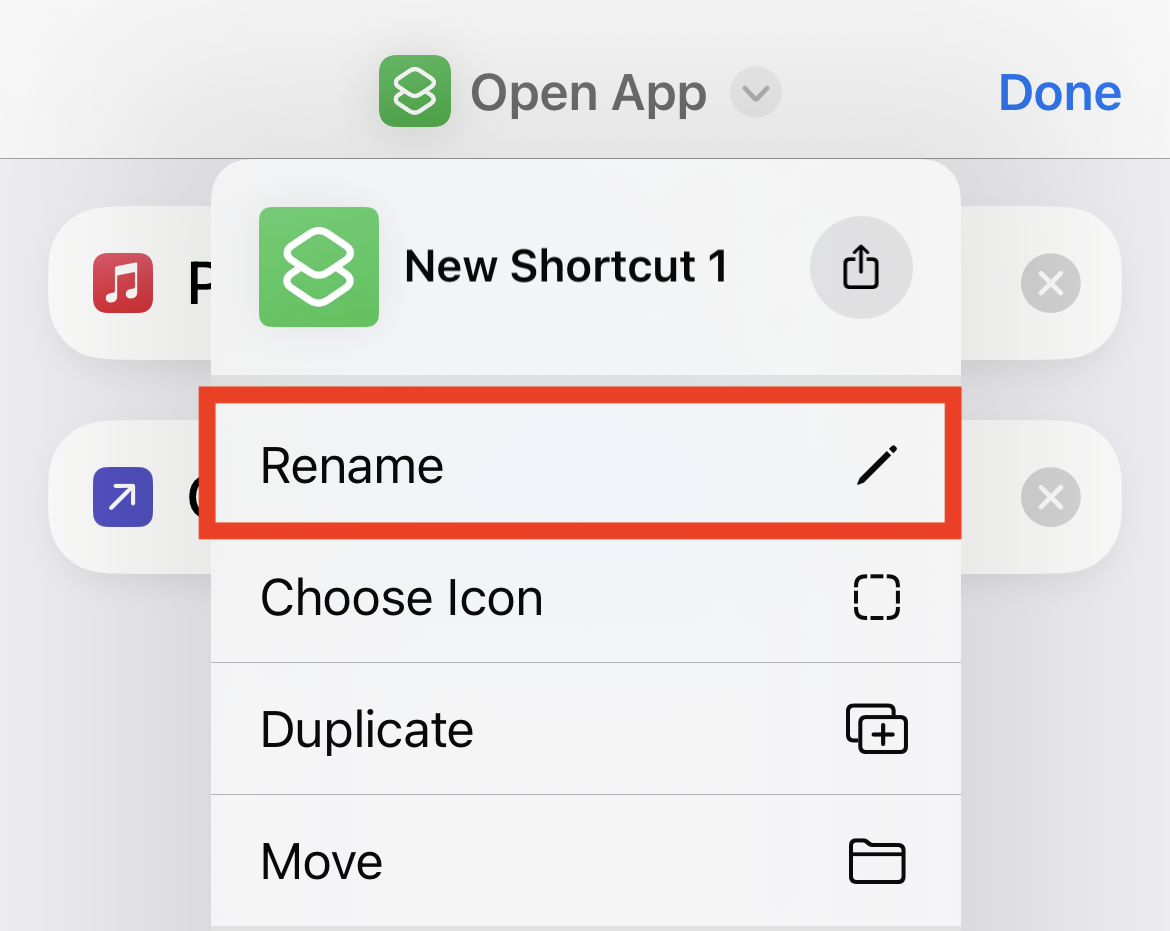
Fig. 13: Rename
The "FaceSwitch" app doesn't reopen after the shortcut is executed
Add the "Open App" action at the end of the shortcut, and set the app to "FaceSwitch."
For details, refer to the "How to create a shortcut?" section above.
Note: To return to the "FaceSwitch" app automatically after the shortcut runs, add the action to reopen "FaceSwitch" at the end of the shortcut.
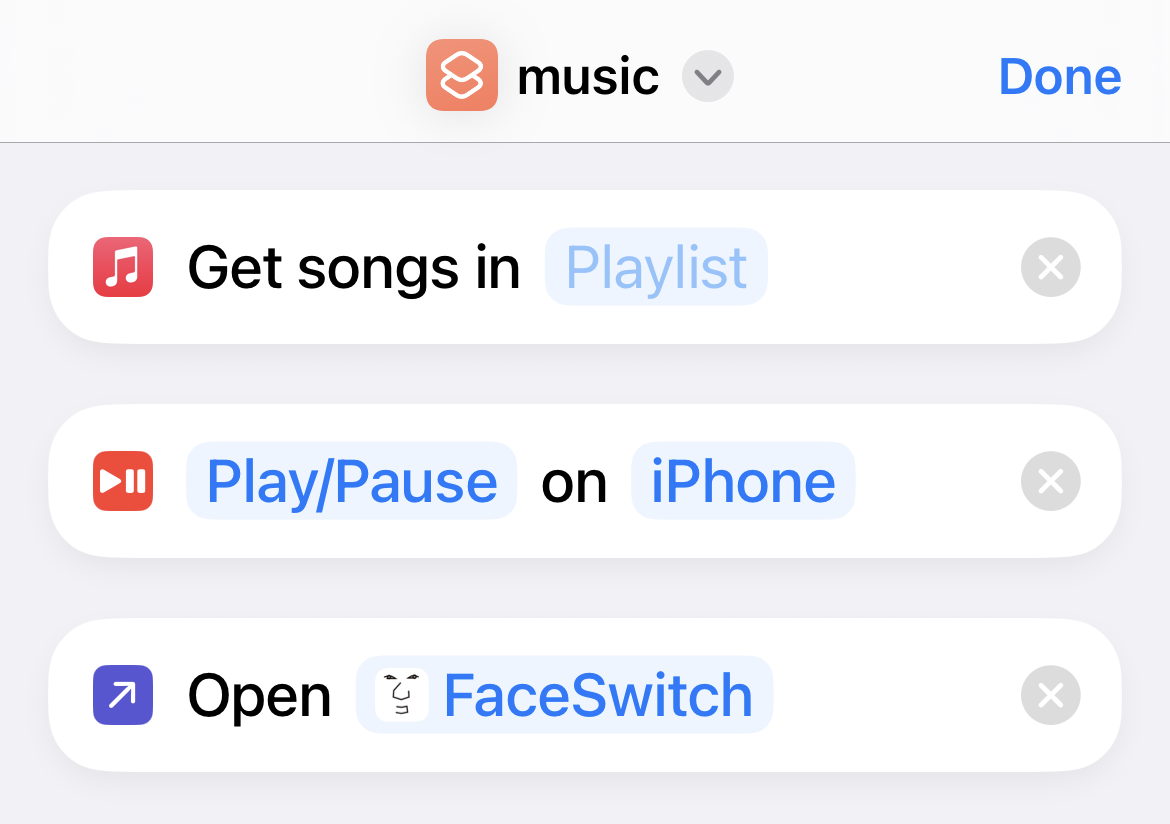
Fig. 14: Add Open "FaceSwitch"
What kind of shortcuts are available?
Here are examples of shortcuts for calling for help, playing/stopping music, and changing TV channels.
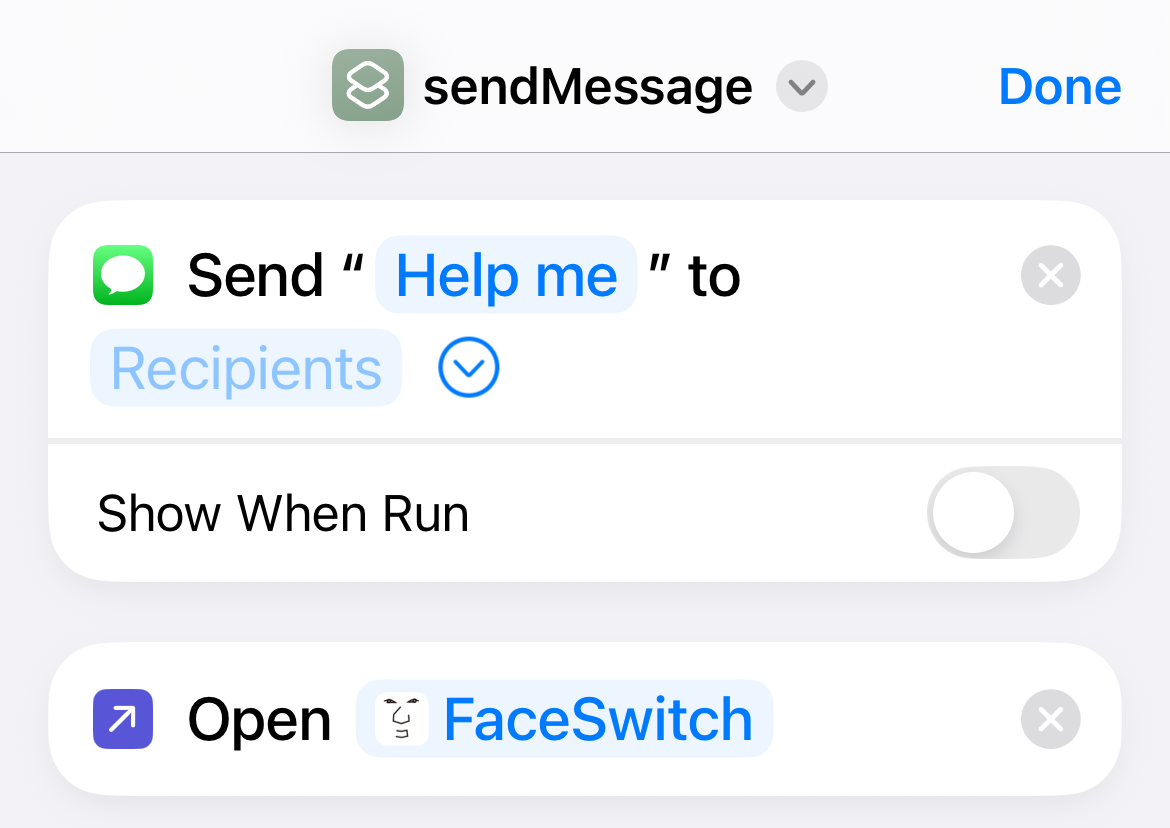
Fig. 15: Send Message
Fig. 16: Play/Pause Music